
Direct-To vs. Flight Plan on your Garmin GPS
High Performance Aviation
Garmin GPS Training Archive
Direct-To vs. Flight Plan on a Garmin GPS
Direct-To and Flight Plan navigation can lead to the same destination, but they create different active-leg behavior inside a Garmin navigator.
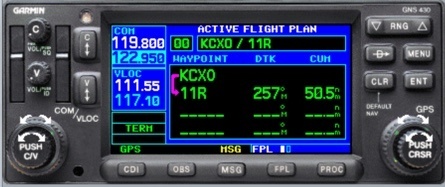
Direct-To: Present position direct to the active waypoint.
Flight Plan: A defined route from Point A to Point B.
When you are setting up your Garmin GPS, you likely use one of these methods to navigate to your destination.
Direct-To
(Present Position)———(Point B)
If you are a Direct-To-kind-of-pilot, you probably like the simplicity of pressing one key, entering your destination airport, pressing ENTER ENTER and being on your way. This works well for VFR flying with a straight-line route to your destination.
Flight Plan
(Point A)———(Point B)
If you are a Flight-Plan-kind-of-pilot (like myself), you probably like the ability to add multiple waypoints and varying routes by pressing the FPL key, entering the details, and having your full route available. Setting up the Flight Plan is essential for IFR flying if you want to take advantage of Garmin’s flight-plan features.
Which Method Is Best?
While both methods can work for some scenarios, I recommend using the Flight Plan method for most flights, even if you plan on flying “Direct.” The benefit of Flight Plan is that you not only have a defined destination, but also a defined departure airport. In addition, the defined route is a distinct route from one exact waypoint to another rather than from the less specific “present position” where you activated Direct-To.
Even for VFR flying, I still recommend using the Flight Plan. Why? Because it takes little additional effort while providing useful route context. When you turn on the avionics, your Garmin GPS may identify its position and place the departure airport in the first line of the Flight Plan, depending on the installation and software. You can then press FPL, enter your destination and route, and confirm the entries. This builds good flight-plan habits.
There are certainly times when you will use the Direct-To key. Think of it as a useful diversion tool when deviating from the original plan. For instance, when ATC clears you direct to a waypoint along your route, Direct-To may be appropriate. If you need to divert to a nearby airport, it may also be useful.
Reading the Magenta Arrow
The small magenta arrow in the Flight Plan is important because it shows the type of active navigation leg the Garmin is using.

This is the normal indication as the flight plan progresses past the waypoints.

In this case, the CDI course is based on the position where Direct-To was activated and the selected waypoint.

After reaching the selected waypoint, the navigator can resume sequencing between subsequent flight-plan waypoints.

Summary
Use Flight Plan as the primary method for building and reviewing a route, and use Direct-To when it is appropriate for a clearance change, diversion, or other deviation. Always confirm the active leg, course guidance, and waypoint sequencing before relying on the navigator.
Would you like more information?
Send us a message below.